A multiple-monitor setup can transform the way you work—but only if your office feels intentional rather than overcrowded. Three glowing screens, tangled cables, oversized monitor stands, and scattered accessories can quickly make even a spacious desk feel chaotic.
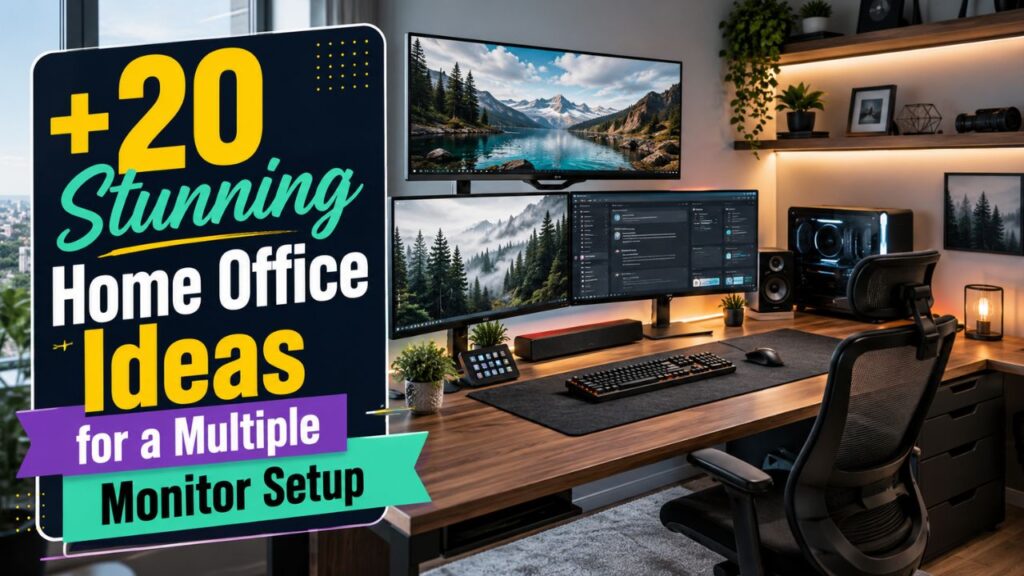
The good news? A productive multi-monitor workspace can also be one of the most stylish areas in your home.
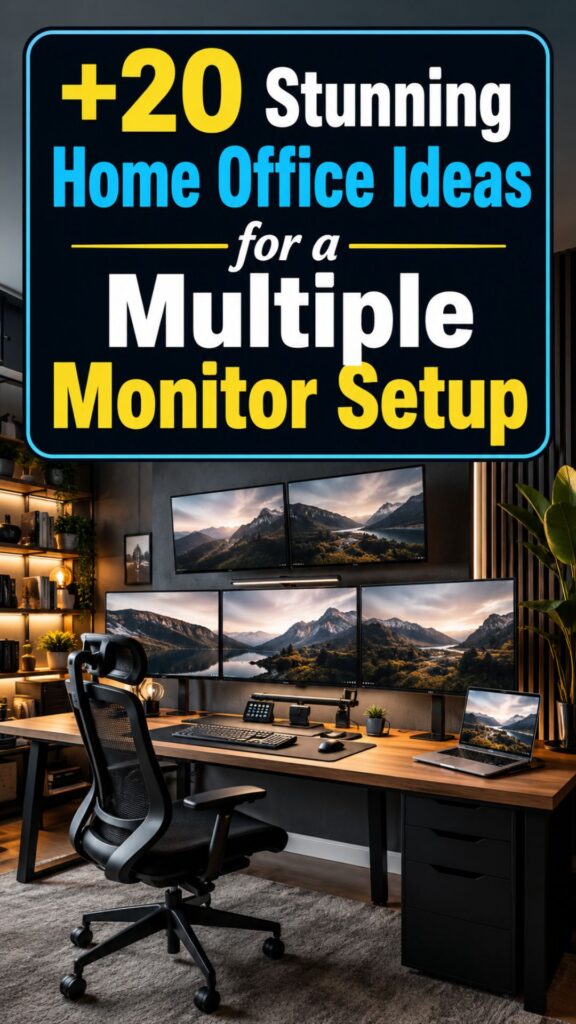
Whether you use two monitors for everyday productivity, three displays for trading or coding, or an ultrawide screen alongside a laptop, the right layout can give you more room to work while keeping your home office clean, comfortable, and visually impressive.
Here are 20 stunning home office ideas for a multiple monitor setup to inspire your next workspace upgrade.
1. Create a Clean Dual-Monitor Minimalist Setup
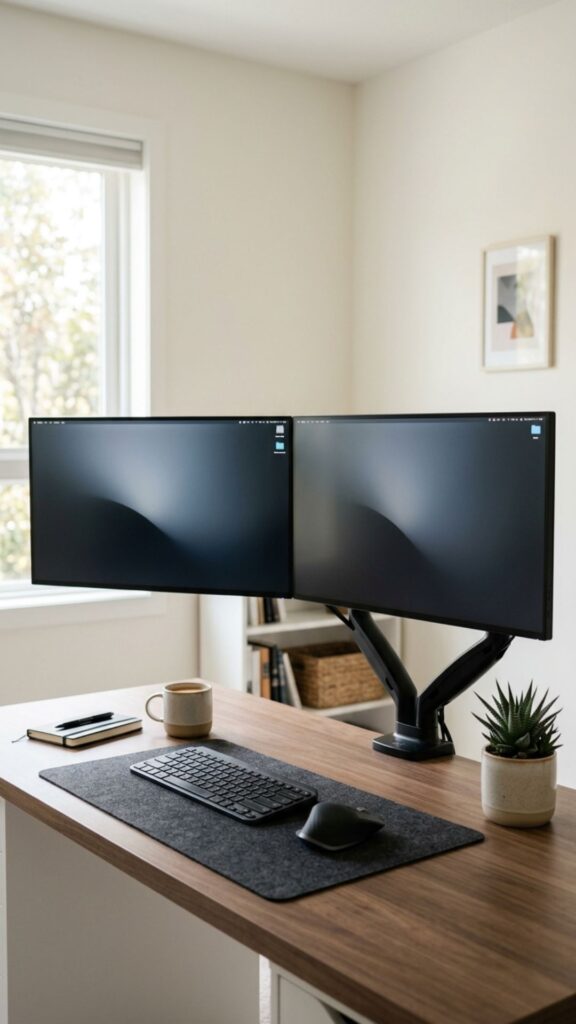
Sometimes the simplest setup looks the best.
Place two identical monitors side by side on a long desk and keep everything else minimal. A neutral desk surface, compact keyboard, wireless mouse, and a small desk lamp can create a professional workspace without unnecessary visual clutter.
Using matching monitors also makes the setup feel more balanced and intentional.
Best for: Writers, marketers, office professionals, and students.
2. Float Your Monitors With Monitor Arms
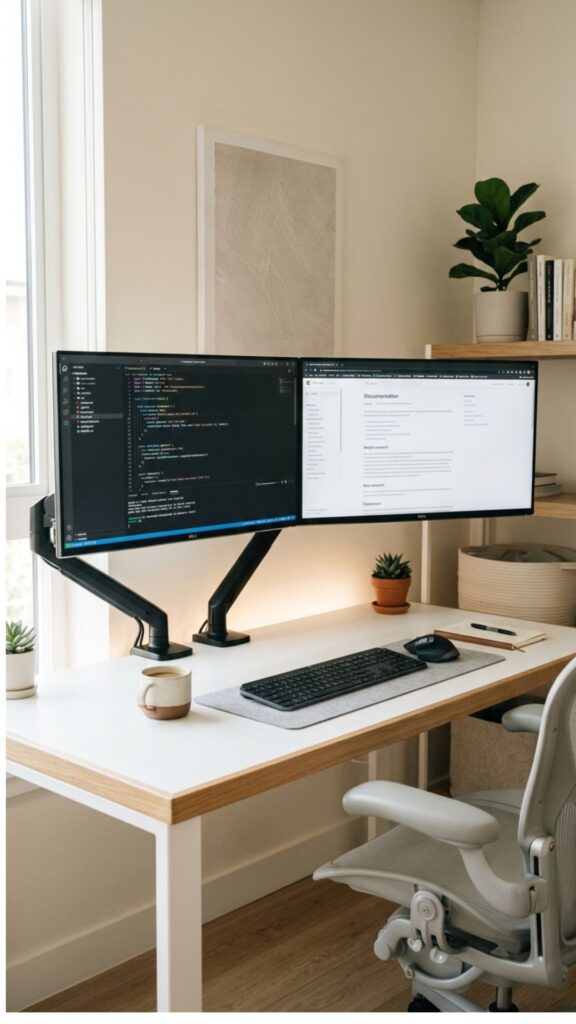
One of the easiest ways to make a multi-monitor workstation look more impressive is to remove the bulky factory stands.
A dual or triple monitor arm allows your screens to appear as though they’re floating above the desk.
Beyond aesthetics, monitor arms also free valuable desk space underneath your displays. You can use that extra room for notebooks, speakers, charging stations, or simply leave it empty for a cleaner look.
3. Build a Three-Monitor Command Center
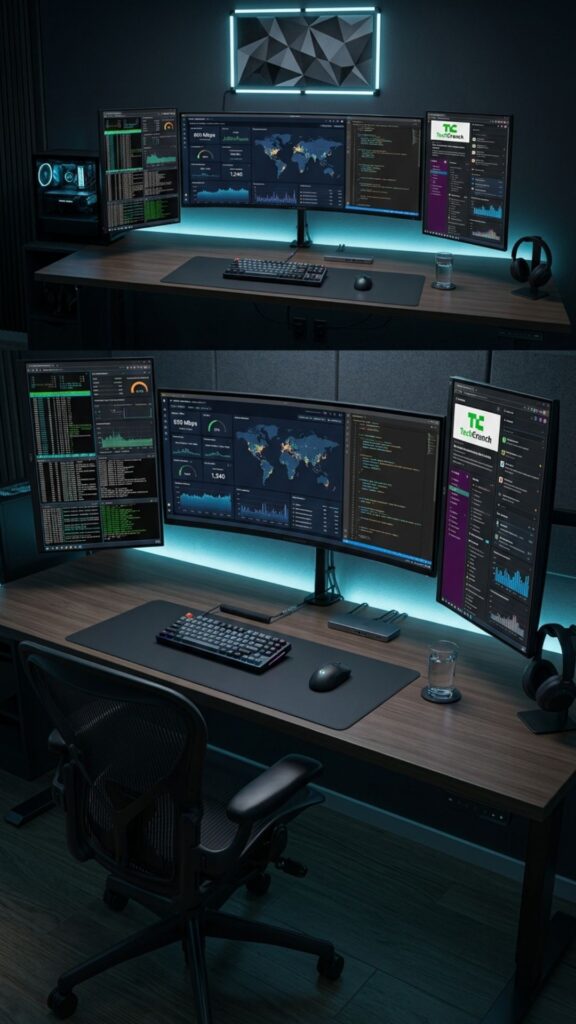
If your work requires serious screen real estate, consider creating a three-monitor command center.
Position your main monitor directly in front of you with two secondary screens angled slightly inward.
This creates an immersive workspace without forcing you to constantly turn your head.
A triple-monitor setup works especially well for:
- Programmers
- Video editors
- Financial traders
- Data analysts
- Streamers
- Content creators
Keep the desk accessories minimal so the monitors remain the visual centerpiece.
4. Combine an Ultrawide Monitor With a Vertical Screen
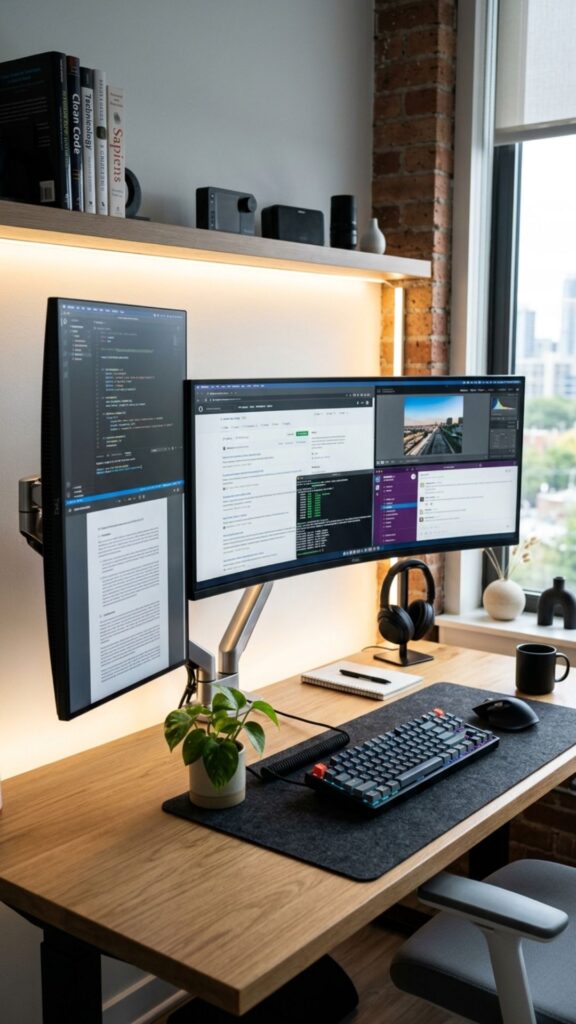
Not every multi-monitor office needs matching displays.
Try pairing one large ultrawide monitor with a smaller vertical monitor.
The ultrawide screen can handle your main workflow, while the vertical display is perfect for email, Slack, documents, coding, social feeds, or reference materials.
This asymmetrical arrangement gives your office a modern, creative appearance.
5. Add Warm Wood for a Cozy Workspace
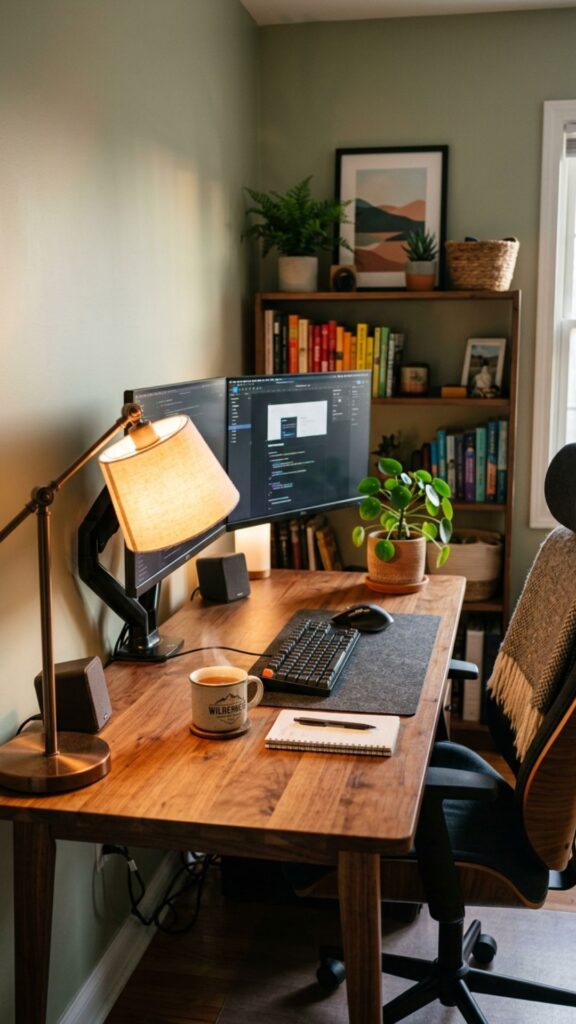
Technology-heavy setups can sometimes feel cold.
A beautiful wooden desk instantly softens the appearance of multiple monitors.
Walnut, oak, bamboo, and butcher-block desktops all pair beautifully with black monitors and accessories.
Add a warm desk lamp and a small plant, and your high-tech workstation suddenly feels much more inviting.
6. Try an All-Black Multiple Monitor Setup
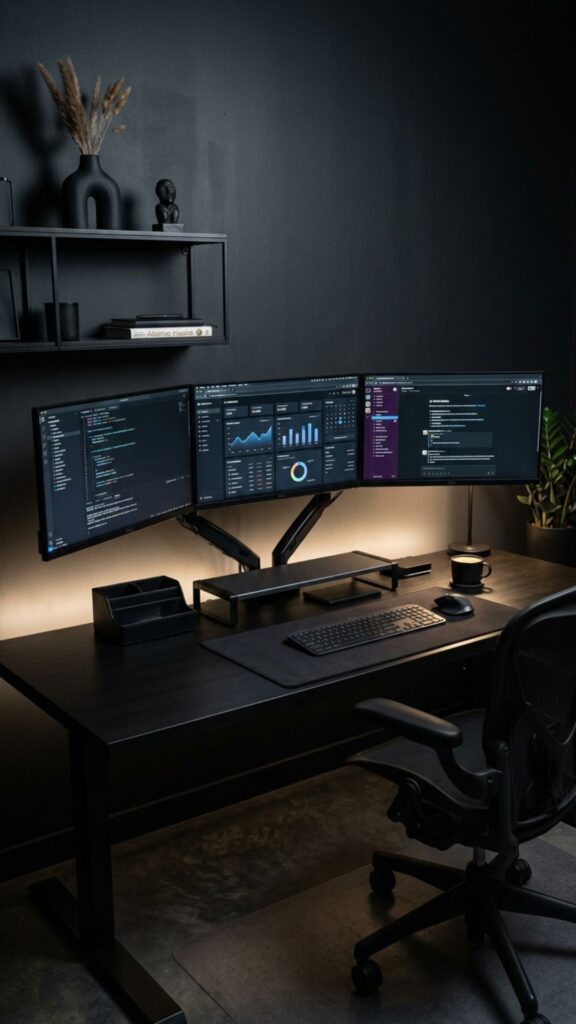
For a dramatic home office, build your setup around black.
Use black monitors, monitor arms, keyboard, mouse, desk mat, speakers, and accessories.
A dark desk surface or black wall can make the entire workstation look incredibly sleek.
The secret is adding subtle contrast through lighting, plants, artwork, or metallic accessories so the room doesn’t feel too flat.
7. Create a Bright All-White Workspace
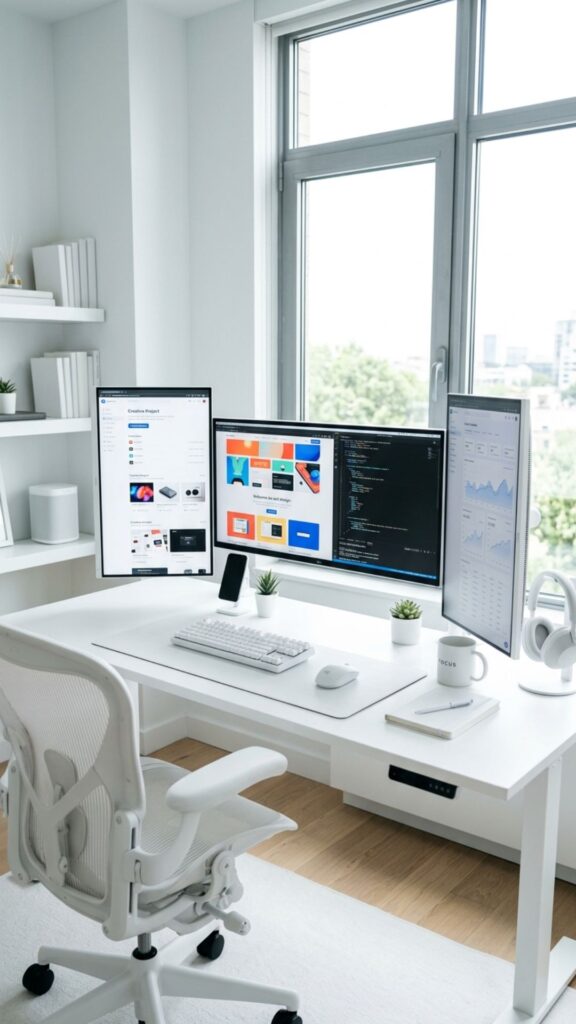
Prefer something lighter?
An all-white setup creates an airy, contemporary home office.
Choose white monitor arms, a white desk, light-colored peripherals, and pale walls.
Even if the monitors themselves are black, they can create attractive contrast against the lighter surroundings.
This approach works particularly well in smaller home offices because brighter colors can make the room feel more spacious.
8. Use a Corner Desk for Maximum Screen Space
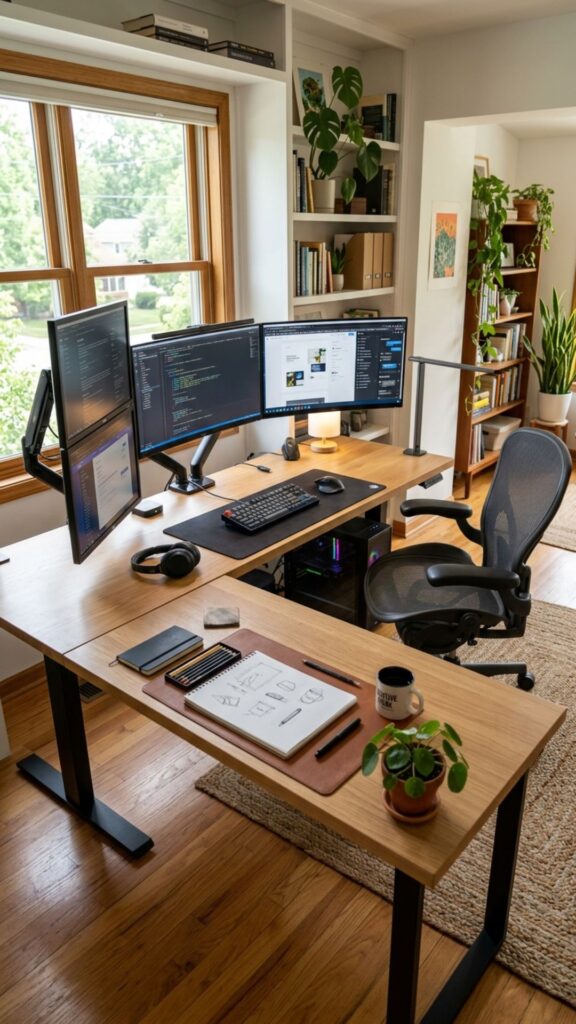
A corner desk is ideal when two or three monitors begin taking over a traditional desk.
An L-shaped workstation gives you separate zones for different activities.
For example, you could place your monitors on one side and use the second section for writing, sketching, reading, or paperwork.
It also gives you considerably more space for speakers, storage, printers, and other office equipment.
9. Install a Monitor Shelf
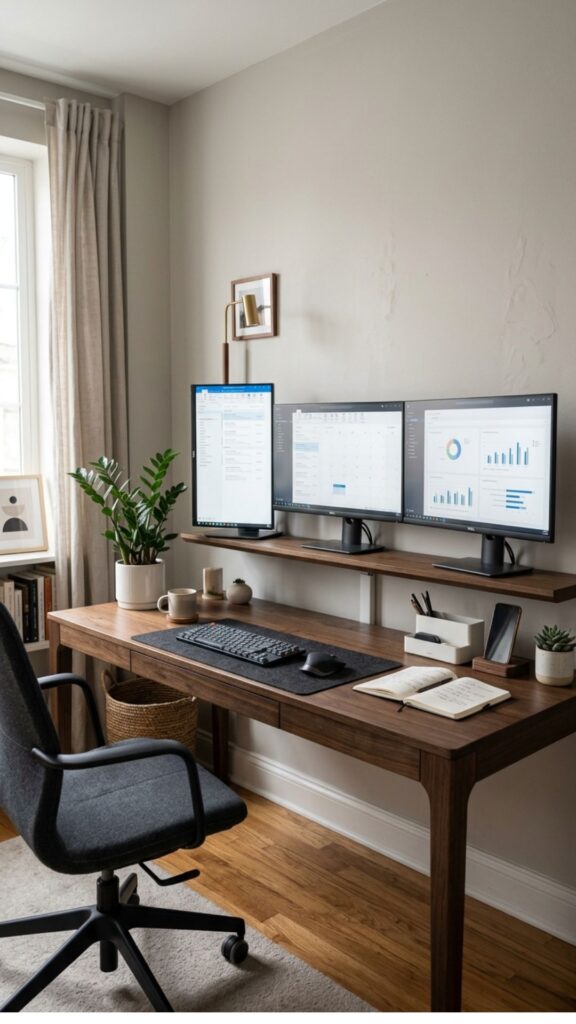
A long monitor shelf can instantly make your desk look more polished.
Place it beneath your monitors to add visual structure while creating additional storage underneath.
The space can hold:
- An audio interface
- Laptop
- External drives
- Notebooks
- Charging accessories
- Small desk organizers
Choose a shelf that complements your desktop for a cohesive appearance.
10. Make Cable Management Invisible
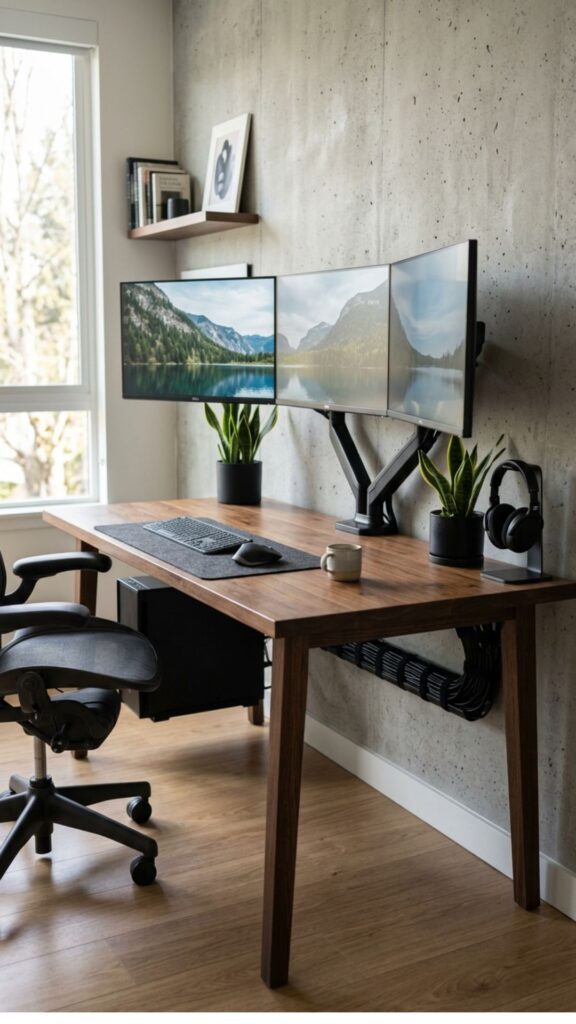
Nothing ruins an impressive monitor setup faster than a collection of dangling cables.
Install an under-desk cable tray and route your monitor, charging, power, and peripheral cables through it.
Use Velcro ties or reusable cable clips to group cables together.
You can also mount your power strip beneath the desk.
From the front, the goal should be simple: almost no visible wires.
This single improvement can make an inexpensive workstation look considerably more premium.
11. Add LED Backlighting Behind Your Monitors
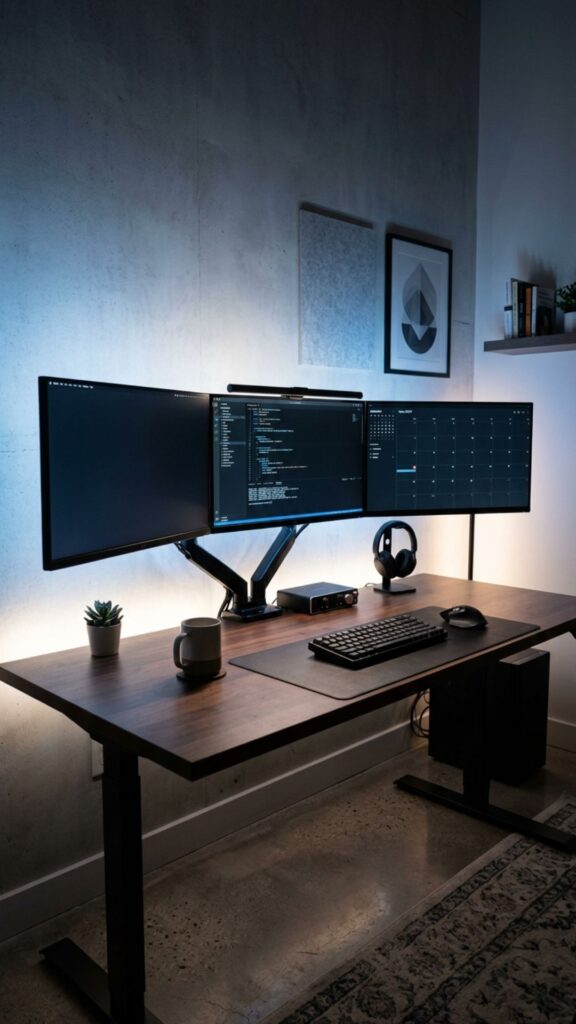
Lighting can completely change the mood of a workspace.
Install LED strips behind your monitors or underneath the rear edge of your desk.
Indirect lighting creates a soft glow behind the screens rather than shining directly into your eyes.
For a sophisticated setup, use subtle warm or neutral lighting. For a gaming-inspired office, adjustable RGB lighting offers endless possibilities.
12. Create a Productivity-Focused Vertical Monitor Setup
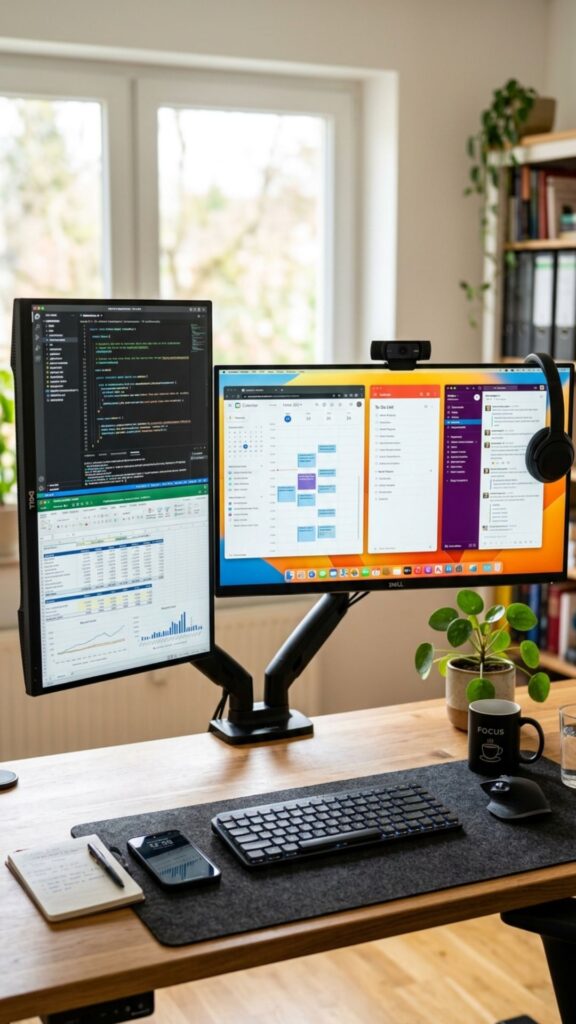
Turning one monitor vertically can dramatically improve certain workflows.
A portrait-oriented display is especially useful for:
- Reading long documents
- Programming
- Reviewing spreadsheets
- Writing articles
- Monitoring chat applications
- Viewing webpages
Place your main landscape monitor in the center and the vertical screen to either side.
It saves horizontal desk space while making the setup visually distinctive.
13. Add Plants Around Your Technology
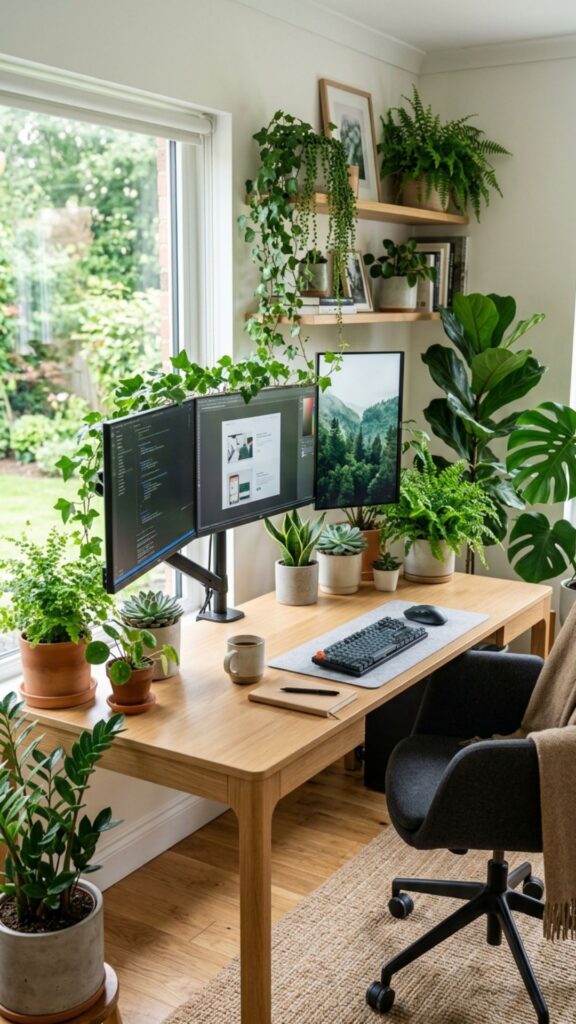
Multiple monitors introduce plenty of metal, plastic, and glass into a room.
Plants provide the perfect contrast.
Place a small plant beside your monitors or use taller plants near the desk.
Pothos, snake plants, ZZ plants, and succulents are popular office choices because many varieties require relatively little maintenance.
A small amount of greenery can make the entire workspace feel calmer and more welcoming.
14. Create a Floating Desk Multi-Monitor Office
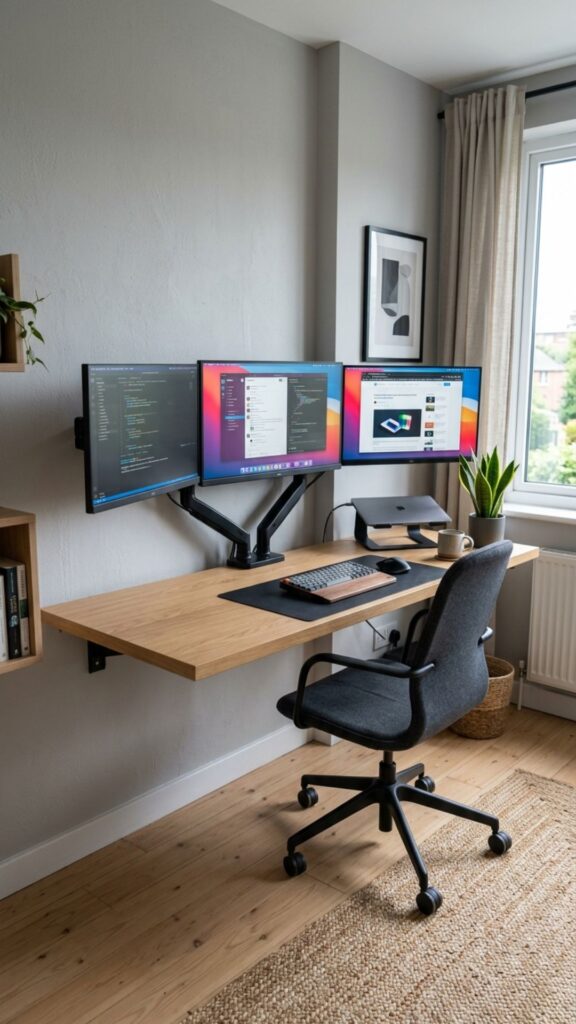
If floor space is limited, consider mounting your desktop directly to the wall.
A floating desk creates a clean architectural appearance while eliminating bulky desk legs.
Mount your monitors on adjustable arms and hide cables along or inside the wall when practical.
The result is a streamlined workstation that can work beautifully in bedrooms, apartments, or compact offices.
15. Use a Large Desk Mat to Unite the Setup
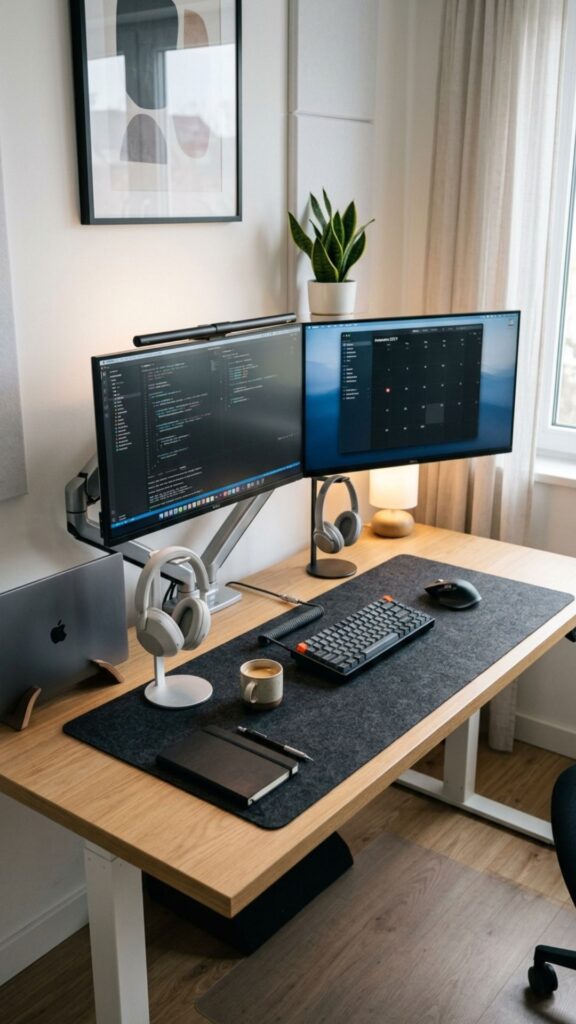
A large desk mat is a small addition that can make multiple accessories feel like one coordinated workspace.
Choose a mat wide enough to accommodate your keyboard and mouse.
Leather, felt, cork, and fabric desk mats can all create different visual styles.
For minimalist setups, choose a neutral color that complements your desktop rather than competing with it.
16. Build a Multi-Monitor Setup Against an Accent Wall
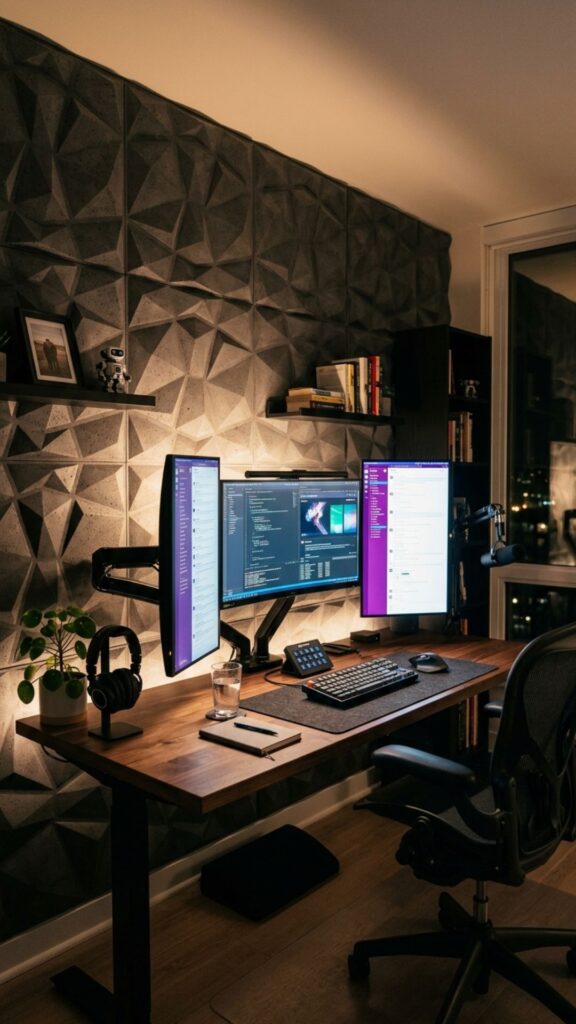
Your monitors don’t have to provide all the visual interest.
Place your workstation against an accent wall featuring:
- Dark paint
- Wood slats
- Textured panels
- Wallpaper
- Acoustic panels
- Concrete-effect finishes
The wall becomes a backdrop for the setup, making even relatively simple monitors and furniture look much more intentional.
17. Add Pegboard Storage Above the Desk
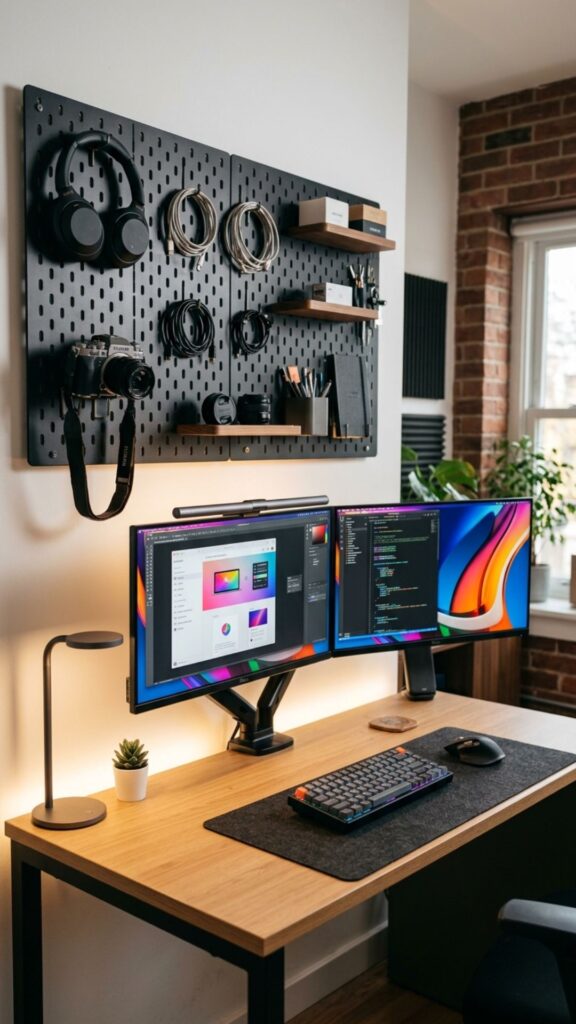
Need storage without filling your desktop?
Install a pegboard above or beside your monitors.
It can hold headphones, cables, stationery, small shelves, controllers, cameras, or office accessories.
Because pegboards can be rearranged, you can change the layout as your equipment evolves.
This is particularly useful for creators who frequently use different devices.
18. Create a Dual-Purpose Work and Gaming Setup
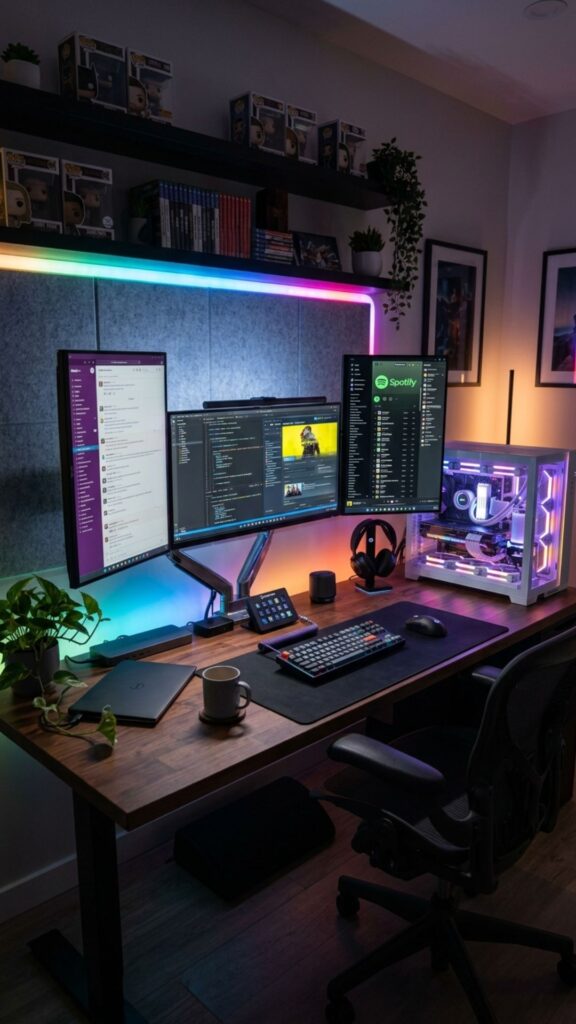
You don’t necessarily need separate spaces for work and gaming.
Create one polished multiple-monitor workstation that handles both.
Use your main monitor for work during the day and gaming after hours, while secondary displays handle communication, streaming, music, or system information.
Choose understated peripherals and adjustable lighting so the office can transition easily between professional and entertainment modes.
19. Place Your PC Away From the Desktop
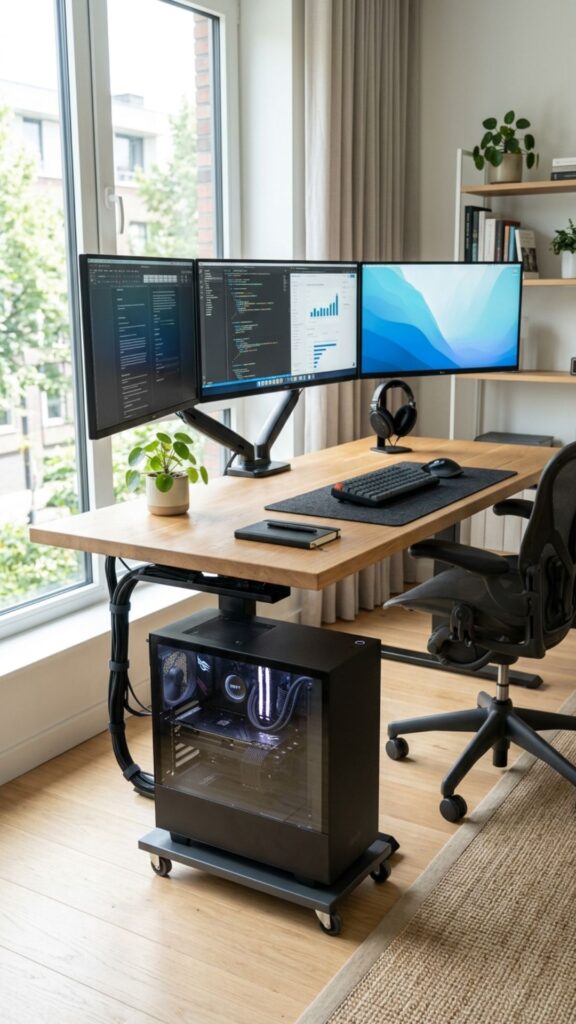
A large PC tower beside three monitors can make a desk feel crowded.
Consider placing the computer underneath the desk, on a dedicated tower stand, or on a nearby cabinet.
This opens more desktop space and lets your monitors become the main visual feature.
Just make sure the computer still has sufficient ventilation and isn’t sitting directly on thick carpet where airflow may be restricted.
20. Design a Fully Symmetrical Multi-Monitor Office
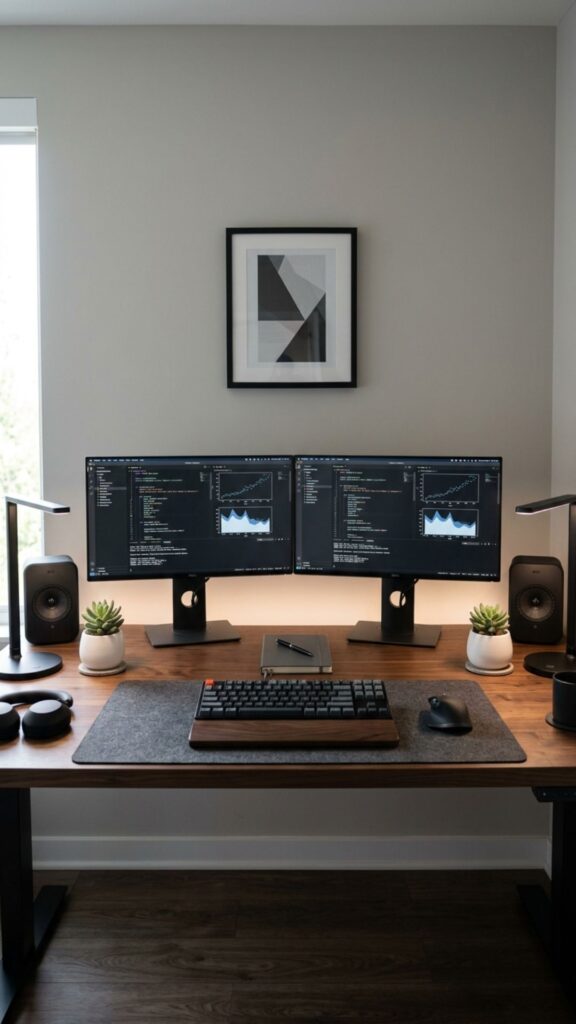
If you love an organized appearance, symmetry can make a multiple-monitor setup especially satisfying.
Start with two matching monitors positioned evenly around the center of the desk.
Then balance the surrounding elements:
- Matching speakers on both sides
- Equal monitor heights
- Centered keyboard
- Centered desk mat
- Matching lamps or accessories
- Balanced wall décor
Symmetry gives even a technology-filled workspace a calm, polished feeling.
Small Details That Make a Multiple Monitor Setup Look Better
The monitors may be the largest elements in your office, but small details often determine whether the setup looks carefully designed or simply crowded.
Keep accessories within a consistent color palette. Hide unnecessary cables. Leave some empty desk space. Position your screens at comfortable heights, and avoid filling every inch of wall space with decorations.
Most importantly, design your setup around how you actually work rather than copying someone else’s desk exactly.
A beautiful workspace should also be comfortable and functional.
Conclusion
A stunning multiple-monitor home office isn’t about owning the most expensive desk, the largest screens, or the most elaborate collection of accessories. It’s about making several pieces of technology feel like they belong together.
Start with the layout that supports your workflow. Mount your screens at comfortable heights, control cable clutter, and then introduce design elements such as warm wood, lighting, plants, shelving, or an accent wall.
Whether you’re building a minimalist dual-monitor desk or a three-screen command center, the best setup is one that gives you more digital space without making your physical workspace feel crowded.
With a little planning, those extra monitors can become more than productivity tools—they can become the centerpiece of a home office you’ll actually look forward to using.
Is two monitors enough for a home office?
Yes. Two monitors provide plenty of screen space for most productivity tasks while keeping the setup relatively simple and affordable.
What desk size is best for multiple monitors?
A desk around 55–70 inches wide works well for many dual- or triple-monitor setups, although the ideal size depends on your monitor dimensions and accessories.
Should multiple monitors be the same size?
They don’t have to be. Matching monitors create a symmetrical look, while different sizes can work well when each screen has a specific purpose.
Are monitor arms worth using?
Yes. Monitor arms can free desk space, improve screen positioning, and give a multiple-monitor setup a much cleaner appearance.
How can I hide cables in a multi-monitor setup?
Use an under-desk cable tray, reusable cable ties, clips, cable sleeves, and an under-desk-mounted power strip to keep most wiring out of sight.